
Can't log in to Facebook? Try clearing cookies first
Facebook shows Invalid request and you cannot log in? Follow these illustrated Chrome steps to clear cookies and cached files, then start signing in again. Check which data to keep before deleting anything.

Contents(15)
- Why does Facebook show Invalid request when you try to log in?
- How to fix Facebook Invalid request on a computer
- 1. Open History and choose Delete browsing data
- 2. Select Advanced and set the time range to All time
- 3. Select cookies and cached files, then click Delete data
- 4. Return to Facebook and start signing in again
- 5. Complete the verification set up for your account
- Still cannot log in to Facebook after clearing cookies?
- Frequently asked questions about Facebook login problems
- Does a Facebook Invalid request error mean my account is banned?
- Do I need to delete all my saved passwords?
- Does Ctrl + R clear the cache?
- Will these steps let every account log in immediately?
- Need an account for a new project? Choose ADSWAR
- Chrome instructions and references
Entered your password, but Facebook shows “Invalid request” and you cannot continue signing in? Try clearing your browser's cookies and cache, then start again from the Facebook login page. This can help when old sign-in data is stuck in the browser.
In the case shared by ADSWAR, this method let the user reach the identity verification step again on 19 October 2026. Results depend on what is causing the problem for each account. If Facebook still asks for verification or displays an account restriction, follow the instructions it shows.
Why does Facebook show Invalid request when you try to log in?
In this example, Facebook says it could not validate the request and asks the user to start again. That message alone does not tell you whether the account is unusable or disabled. If the login page is still using old cookies or browsing data, clearing that data and starting again may help.
The steps below are for Chrome or Chromium on a computer. Menu names may vary slightly by browser language and version. Have your password and account verification method ready, because deleting cookies may sign you out of websites where you are currently logged in.
How to fix Facebook Invalid request on a computer
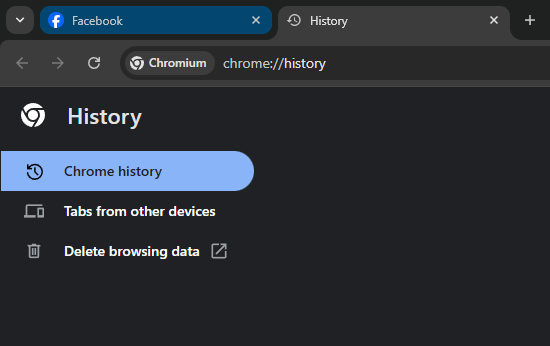
1. Open History and choose Delete browsing data
Press Ctrl + H to open History, then select Delete browsing data on the left. To open the deletion window directly on Windows, press Ctrl + Shift + Delete.
You can also open Chrome's three-dot menu and choose the option to delete browsing data. The layout of options in Settings may differ by version.
2. Select Advanced and set the time range to All time
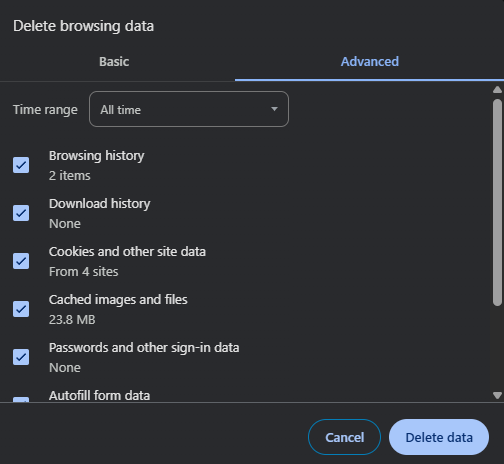
If the window has an Advanced tab, select it and set Time range to All time, as shown. If your version does not have an Advanced tab, check the available data types in the current window.
All time sets the time period for the data you delete. You still need to choose which types of data to delete in the next step.
3. Select cookies and cached files, then click Delete data
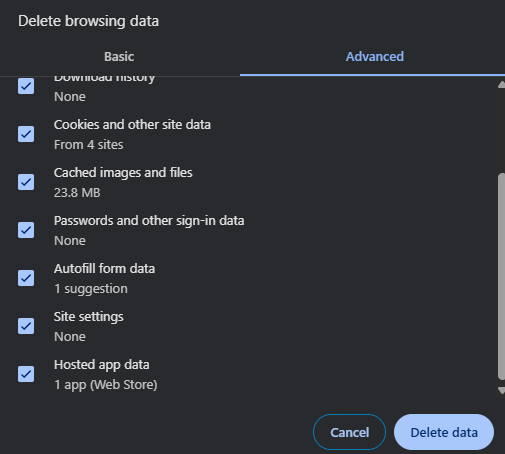
To try resolving a Facebook login problem with an Invalid request error, select these two items:
- Cookies and other site data
- Cached images and files
Check the other boxes before deleting anything, especially Passwords and other sign-in data and Autofill form data. Uncheck them if you want to keep your saved passwords and form information. The example screenshot has several boxes checked, so adjust the selection to match the data you intend to remove.
Once you have checked your selection, click Delete data and wait for the browser to finish. Deleting cookies for All time may sign you out of several websites in this browser profile.
4. Return to Facebook and start signing in again
Open a new tab and type facebook.com or fb.com in the address bar. Press Ctrl + R to reload the page, then enter your login details again. Start from the normal login page instead of returning to an old verification link that was left open.
Ctrl + R reloads the page. You cleared the cookies and cache in the previous steps. To reload while bypassing cached files on Windows, you can use Ctrl + Shift + R. This does not delete cookies or replace the Delete data step.
5. Complete the verification set up for your account
If you reach the page asking for a code from your authenticator app, enter the current code from the app linked to the account and click Continue. Reaching this page means you can continue the login process. You still need to complete verification to access the account.
Still cannot log in to Facebook after clearing cookies?
Check Facebook's latest message first. If it still says Invalid request, try closing all old Facebook tabs and starting again from the homepage. You can also test a new browser profile to help determine whether the problem is related to data in the original profile.
If the message changes to an incorrect password, a verification request, or an account suspension, follow the instructions for that problem. Clearing the cache cannot remove account restrictions or bypass 2FA. If you do not have a verification code, use a recovery option Facebook makes available for your account.
Frequently asked questions about Facebook login problems
Does a Facebook Invalid request error mean my account is banned?
The message alone does not confirm that the account is banned. Start the login process again and check what Facebook displays. If it shows an account restriction, follow the instructions on that screen.
Do I need to delete all my saved passwords?
No. For this method, start by selecting cookies and cached files. Uncheck the password and Autofill options if you want to keep that information.
Does Ctrl + R clear the cache?
Ctrl + R reloads the page. To remove the stored data described here, use Delete browsing data. Ctrl + Shift + R reloads while bypassing cached files and does not delete cookies.
Will these steps let every account log in immediately?
That cannot be guaranteed. This method can help when browser login data is stuck. If the account needs identity verification or has another restriction, you still need to follow the requirements for that account.
Need an account for a new project? Choose ADSWAR
Browse Facebook accounts with ad accounts at ADSWAR. Compare the limits, included information, and terms for each option to find one that fits your work, then order through the product page. If you have a problem with an item purchased from us, send ADSWAR your order number and a screenshot so we can help check it.

Ad Accounts – THB 1,600–8,000 Limit4
View all- 990 accounts10 sold
THB 675
THB 990
- Facebook Account with Ad Account | THB 8,000 Limit | 2009–2024 | Minimum 5Charge cover <THB500; terms applyBeneficiary verifiedEmail receives verification codes+2995 accounts5 sold
THB 2,299
price per account
- Facebook Account with Ad Account | THB 8,000 Limit | 2009–2024 | Minimum 1Charge cover <THB500; terms applyBeneficiary verifiedEmail receives verification codes+2997 accounts3 sold
THB 2,499
price per account
Chrome instructions and references
Related posts
Back to Blog
Facebook and business portfolios
What is a Facebook UID? Can 1000x, 6157x or 6158x reveal account age?
What do Facebook UID prefixes 1000x, 6156x, 6157x and 6158x mean? Read product year examples, check account age and choose the right account specifications.

Facebook and business portfolios
Meta Pixel Helper Has a New Name: Check Events Before Scaling Ads
Meta Pixel Helper is now Meta Ads Data Advisor. Match Facebook events to real purchases, check Purchase and CAPI data, and compare advertising accounts and BM at ADSWAR.

Facebook and business portfolios
Don’t want a Business Portfolio? Try opening your ad account here
Stuck at Business Portfolio setup? Try the direct Meta Payment Settings link, check its limits and compare ad account options at ADSWAR.